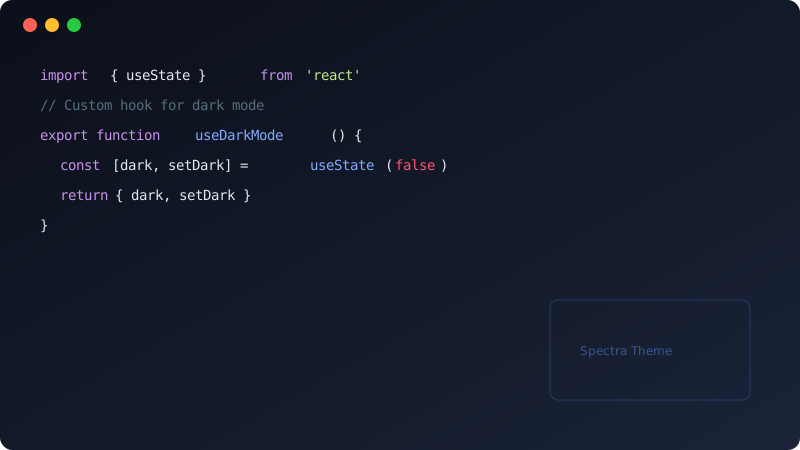
Cover Image
That big image at the top of this post? That’s the cover image. Setting it up is dead simple — just add one line to your front matter:
cover: "images/demo01.jpg"
The cover image automatically gets a gradient overlay so your title text doesn’t get lost against the background. If you don’t want a cover image, just leave it as an empty string "".
Inserting Images
Standard Markdown syntax works just fine:

Images automatically get rounded corners. The alt text isn’t just for accessibility — it also shows up when the image fails to load, so fill it in.

Click to Zoom
Spectra has a built-in lightbox. Click any image in a post and it zooms to fullscreen with a dimmed background. Click again or press Esc to close.
No extra config needed — every image in your posts supports this automatically.
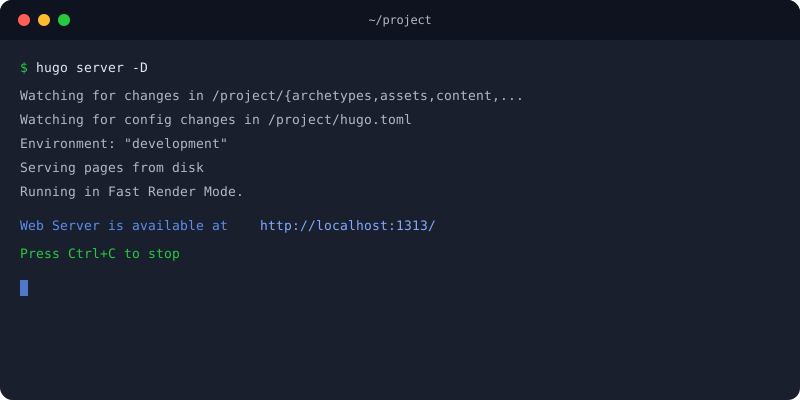
Try clicking the image above.
Image Format Guide
Different formats shine in different situations:
| Format | Best For | File Size | Transparency |
|---|---|---|---|
| WebP | Photos, screenshots | Small | Supported |
| SVG | Icons, vector graphics | Very small | Supported |
| PNG | Screenshots needing transparency | Medium | Supported |
| JPG | Photos | Medium | Not supported |
Generally speaking, compress photos to WebP under 200KB and you’re good. For icons and simple diagrams, SVG is the way to go.
Where to Put Images
Drop image files in the static/images/ directory and reference them with /images/filename.
your-site/
├── content/
│   └── posts/
│       └── my-post.md
└── static/
    └── images/
        ├── demo01.jpg
        └── sample-architecture.svg
Responsive
Images automatically scale to fit the container width — they won’t overflow on mobile. You don’t need to set widths manually.